


Tutorial
Docker Samba setup with permission management for Raspberry Pi
A pragmatic Docker Samba setup where groups, users and shares are described centrally through compose.yaml so that internal network shares can access the same host directories in a clean and consistent way.
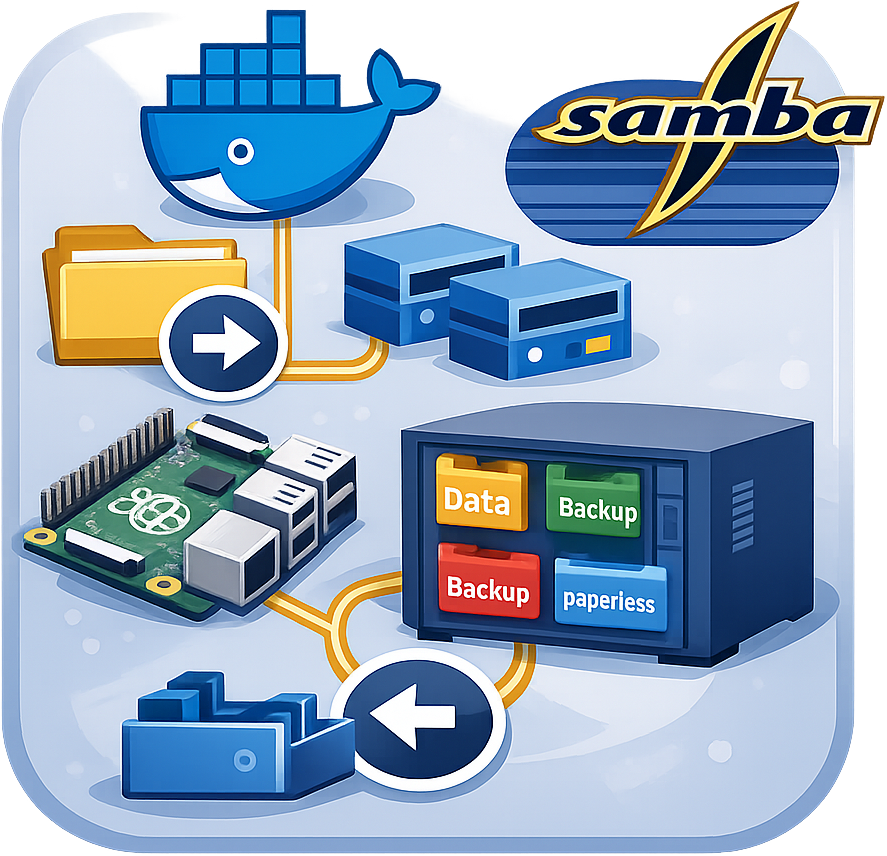 As you have probably already noticed, an internal Samba setup is quick to get running, but it becomes messy as soon as multiple shares, users, groups and different responsibilities come together. That is exactly the point where this Docker Samba setup comes in.
The difference compared to many simple Samba containers is not just that a single share is exposed, but that groups, users and shares are built directly from the startup parameters. That keeps the configuration comparatively compact, even when several directories with different access rules are involved.
For this to work not only during container startup but also later on with the mounted host directories, group permissions, user assignments and file permissions have to be prepared properly. That is exactly what this guide is about.
The setup consists of:
- a Samba container based on Raspberry Pi OS / Debian Bookworm
- multiple mounted host or NAS directories
- groups, users and shares that are passed in during startup
- a compose.yaml where the shares are described centrally
The real point of this setup is not Docker itself, but how multiple shares with matching groups and users can access the same host directories in a consistent way.
1. Prepare compose.yaml
First change into the Samba directory and open compose.yaml:
cd samba
nano compose.yaml
2. Adjust the host directories in compose.yaml
In compose.yaml, the directories are defined that will later appear inside the container as Samba shares. These paths have to be adjusted to match your local or NAS structure.
Example:
volumes:
  - /mnt/nas/myname-data:/share/myname-data
  - /mnt/nas/myname-handy:/share/myname-handy
  - /mnt/nas/myname-paperless:/share/myname-paperless
The important part is:
- the left side is always the path on the host
- the right side is the target path inside the container
- Samba will later work directly on these mounted directories
3. Why groups, users and shares are the real point of this setup
The real advantage of this setup is not just that Samba runs inside Docker, but that groups, users and shares can be described centrally during startup.
The complete logic is tied to the command parameters inside compose.yaml:
- -g creates groups
- -u creates users
- -s creates the shares in the Samba configuration
It is important to respect the order here: first groups, then users, and finally the share name (= group name).
3.1. Define groups with -g
The groups are passed in with group name and GID. In your example it looks like this:
-g "w-data:4000"
-g "w-handy:4001"
-g "w-paperless:4002"
That means exactly these groups are created inside the container during the first start. This matters because the shares later refer directly to these groups.
3.2. Define users with -u
The user definition contains username, password, UID and group memberships. For a public text, passwords obviously should not appear in plain text but as placeholders:
-u "myname:[[PASSWORT_MYNAME]]:4000:w-data,w-handy,w-paperless"
-u "myname-handy:[[PASSWORT_HANDY]]:4001:w-handy"
-u "myname-paperless:[[PASSWORT_PAPERLESS]]:4002:w-paperless"
The structure is:
user:password:uid:groupsDuring startup, the container creates these users internally and enables them for Samba right away. For the person starting the container, the only important part is that the data in compose.yaml is complete and correct. The actual user creation runs internally and does not have to be rebuilt as a manual Bash script.
3.3. Define shares with -s
The shares themselves are also described through startup parameters:
-s "w-data:/share/myname-data:rw:we"
-s "w-handy:/share/myname-handy:rw:wd"
-s "w-paperless:/share/myname-paperless:rw:wd"
The structure is:
sharename:path:rw-or-ro:we-or-wdIn this setup that means:
- rw = the share is writable
- ro = the share is read-only
- we = recycle bin support is enabled
- wd = no recycle bin, normal share without recycle VFS
From these values, the container builds the actual Samba shares internally. For the user that simply means:
- each share is tied to the matching group
- write or read-only access is controlled by rw or ro
- new files and directories end up with the intended permissions inside the respective share
You do not need to write the internal Samba lines yourself. The important part is only that group name, share name and path match cleanly inside compose.yaml.
4. Start Docker Compose
Once paths, groups, users and shares are configured correctly, the container can be built and started:
sudo docker compose up -d --buildTo verify:
sudo docker compose ps
sudo docker logs samba
In this setup the container exposes port 445:
ports:
  - 445:445
That makes the Samba service reachable directly through the host inside the local network.
5. Important note about permissions and startup behavior
The container does not just generate the configuration. It also checks the mounted host directories afterwards. That is the part that matters most in practice.
For every share it checks:
- whether the group of the target directory matches the share name
- whether files and directories have the expected permissions
If that does not match, the container adjusts group ownership and permissions automatically during startup. That is practical because host-side files do not have to be fixed manually afterwards. At the same time, this is exactly the part that can take time when a share contains a lot of data.
If a share is configured with we, recycle support is enabled as well. That is useful for network shares where accidentally deleted files should not disappear immediately. If wd is used instead, the share runs without that additional recycle mechanism.
Important to know:
- this setup is deliberately pragmatic and intended for internal shares
- users and passwords are passed in through startup parameters
- permission adjustments run recursively across the mounted directories
That is very convenient locally or internally, but of course it is not a particularly strict security model.
6. Result
If everything is prepared correctly, this setup provides exactly the benefit it is meant for:
- multiple Samba shares can be started compactly through Docker
- users, groups and shares are described centrally through the Compose file
- the permissions of the mounted directories are checked directly and corrected when needed
- a Raspberry Pi or internal NAS setup becomes comparatively easy to manage
This is not a universal high-security model, but a deliberately pragmatic Samba setup for internal shares. Especially for your own network or a Raspberry Pi, that compromise can make a lot of sense.
7. Additional information
To avoid breaking the permission model, files should always be accessed through the Samba share.
smb://myhost